
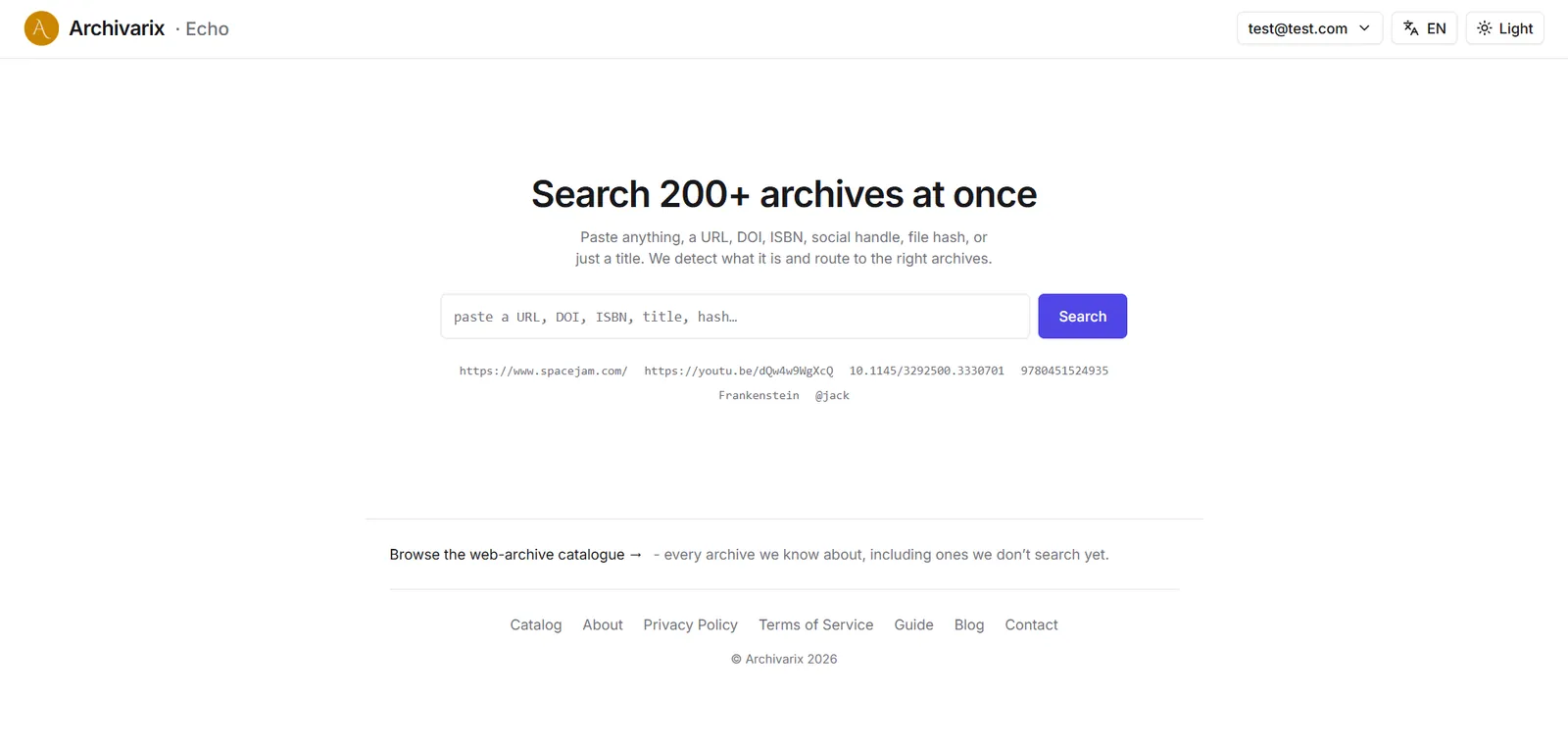
Archivarix Echo searches 200+ web archives at once. Instead of opening the Wayback Machine, then archive.today, then a dozen academic and book archives one by one, you paste a single thing into Echo and it works out where to look. This guide explains what you can search, how a search works, and how to read your results.
What you can search
This is the heart of Echo. You don't choose an archive or a category: you paste a thing, and Echo recognises what it is and routes it to every archive built to answer that kind of input. You never have to know which of the 200+ archives might have it; that's the whole job Echo does for you. Below is everything Echo understands, with examples.
Paste an exact identifier
Echo recognises these input shapes on sight. The more specific your input, the more precisely it routes, but you never have to label it, just paste.
A web page URL,
https://www.spacejam.com/Finds saved snapshots of that page across the big web archives: the Wayback Machine (1 trillion+ pages), archive.today, Common Crawl, Perma.cc, Ghostarchive, Software Heritage, and national web archives (the UK Government Web Archive, Portugal's Arquivo.pt, Iceland's Vefsafn, Australia's Trove, the Library of Congress). You see the page as it looked at different points in time: even if it is gone today.A whole website or domain:
nokia.comPaste a bare domain to pull every captured page of a site, not just one address. Echo adds a "list all captured files" view on the web archives, and routes the domain to crt.sh (Certificate Transparency) to reveal subdomains and the site's SSL-certificate history: a way to map a site that no longer exists.A YouTube video (
https://youtu.be/dQw4w9WgXcQ), or just the iddQw4w9WgXcQRecovers metadata, subtitles, and thumbnails of deleted or removed videos through Tube Archivarix and Filmot (subtitle search across hundreds of millions of videos), plus archived copies of the watch page on the Wayback Machine, archive.today, Common Crawl, and Ghostarchive. The thumbnail is also sent to reverse-image search to hunt for re-uploads.An image, for reverse search, a direct image link like
https://upload.wikimedia.org/wikipedia/commons/7/78/The_Blue_Marble.jpgEcho spots image URLs (.jpg,.png,.gif,.webp,.avif…) and sends them to the reverse-image engines: Yandex Images (multi-billion index), Google Lens, Bing Visual Search, TinEye (70 billion+ images), plus SauceNAO and IQDB for artwork. Find where else a picture appears, a higher-resolution original, or its true source.A DOI:
10.1145/3292500.3330701Resolves a paper across the scholarly graph (Crossref (165M+ DOIs), DataCite, OpenAlex (480M works), Semantic Scholar, Europe PMC, IA Scholar), and looks for open-access full text through Anna's Archive and Sci-Hub.An ISBN:
9780451524935Finds a book in Open Library (40M+ editions), HathiTrust (18M+ volumes), Google Books, and the shadow libraries Anna's Archive and Library Genesis: catalogue records, scans, and full text.A social handle:
@nasaPulls archived profiles and posts: Twitter/X profiles and individual tweets via the Wayback Machine and archive.today, Telegram channel previews, archived Facebook pages, and Reddit user history through Pullpush and Arctic Shift.A file content hash:
44d88612fea8a8f36de82e1278abb02f(md5, sha1, or sha256) Looks a file up by its content fingerprint on VirusTotal: file and threat intelligence for a file you can identify but cannot name.
Or just describe it in words
No identifier? Type a title, a name, or a few keywords and Echo fans the query out to every text-searchable archive at once (75+ of them) then orders the results by what your words look like. This is where the catalog's full breadth opens up:
- Books & ebooks:
Frankenstein→ Open Library, Project Gutenberg, Standard Ebooks, HathiTrust, Internet Archive Texts, Wikisource, DOAB, plus Anna's Archive & Library Genesis. - Videos:
apollo 11 landing→ Tube Archivarix and Filmot for deleted YouTube, plus Dailymotion, RuTube, Odysee, Rumble, BitChute, Bilibili, VK Video, OK.ru, and Internet Archive Video. - Music & live recordings:
Grateful Dead 1977→ MusicBrainz and the Internet Archive's Live Music Archive (etree) of taper recordings, plus IA Audio. - TV & radio news: broadcast captions in the Internet Archive TV News Archive.
- Papers, preprints & patents:
attention is all you need→ arXiv, PubMed, bioRxiv, medRxiv, DOAJ, DBLP, OpenAIRE, CyberLeninka, Semantic Scholar, and Google Patents. - Software, apps & abandonware:
react(npm),requests(PyPI), plus F-Droid, APKMirror, Software Heritage (20B+ source files), Sourcegraph, MyAbandonware, and the Internet Archive's playable MS-DOS games. - Torrents: The Pirate Bay, Nyaa, 1337x, Torrents-CSV, SolidTorrents, BTDigg, and Academic Torrents (petabytes of research data).
- Research datasets: Harvard Dataverse, Figshare, Zenodo, OSF, and Hugging Face Datasets.
- Free-licensed images & media: Wikimedia Commons (110M+ files), Openverse, and GifCities for GeoCities-era animated GIFs.
- Forums, Usenet, imageboards & fanfiction: Google Groups (Usenet history), Desuarchive and 4plebs (4chan archives), and Archive of Our Own.
- The old & small web: Wiby and Marginalia, search engines for the indie, pre-corporate web.
- Cultural heritage: The Met's open art collection, OldMapsOnline for historical maps, and CourtListener for US case law.
- Files from old disks & dead wikis: DiscMaster indexes files inside vintage disk images; WikiTeam preserves wikis that have shut down.
You never have to tell Echo what kind of input it is: it reads the shape and routes accordingly. A name like Richard Feynman nudges author and profile archives up; a quoted "phrase" favours full-text engines; a single word leans toward usernames and software packages. But nothing is ever hidden: every relevant archive still appears in your results, so you never miss a match.
How a search works
- Paste and search. Type or paste your URL, DOI, ISBN, handle, hash, or title into the box and press Search.
- Echo detects the kind. It classifies the input and selects every archive in its catalog that can answer that kind of query.
- It queries them together. Echo fans the query out to the relevant archives in parallel and collects what comes back.
- Results arrive grouped. Matches are grouped so you can see, at a glance, which archives have a copy and what each one found.
If nothing matches, Echo says so plainly and suggests trying a different form of the same thing: for example, a title instead of a URL.
Reading your results
Each result links straight to the archive that holds the copy, so you can open the snapshot, paper, book, or profile at its source. Archives differ in what they expose: some return rich metadata, others just a link. Open any archive from the catalog to see notes on what's inside it, how it works, and how to access it.
Browse the full catalog
Beyond the live search, Echo keeps a catalog of every archive we know about: including ones we can't query programmatically yet. Open the catalog and filter by category, cluster, API, or access type to explore the whole landscape and learn what each archive covers.
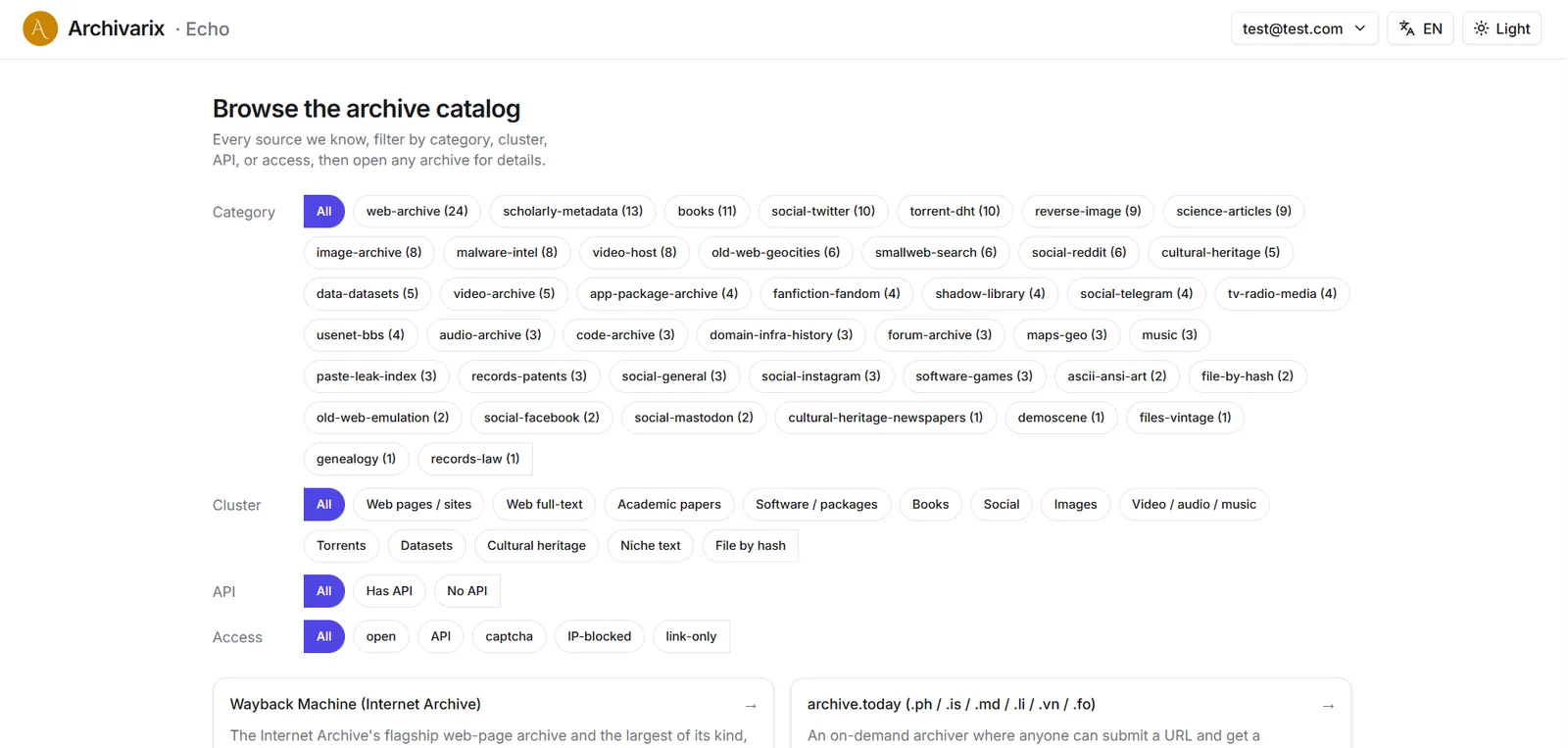
The filters map to how the archives are organised:
- Category: the subject of the archive (web-archive, scholarly-metadata, books, social, science-articles, image-archive, code-archive, and many more).
- Cluster: the broad family an archive belongs to (web pages, full-text, academic papers, software, books, social, images, video/audio/music, torrents, datasets, cultural heritage, niche text, file-by-hash).
- API: whether the archive has a programmatic interface Echo can query.
- Access, how reachable it is:
open,API,captcha,IP-blocked, orlink-only.
What Echo searches live vs. link-only
Not every archive can be queried by a machine. Echo handles two tiers:
- Live archives. Where an archive offers an open search API, Echo queries it directly and brings results back into your search. These are the archives that respond when you paste something into the box.
- Link-only archives. Some archives have no usable API, require a captcha, or block automated access. Echo can't run the search for you, but it lists them in the catalog with a direct link and notes on how to search them by hand. This is the honest read: when we can't open something for you, we say so and point you to where it lives.
Accounts and limits
You can search Echo without registering. Anonymous use has a daily limit to keep the service fair and prevent abuse. A free account raises that limit and saves your search history so you can return to past lookups. Creating an account takes an email and a password: no payment, no plan to choose. Create a free account to get started.
Frequently asked questions
Is Archivarix Echo free?
Yes. You can search without an account. A free account simply raises your daily limit and remembers your history.
How does it work?
Echo doesn't store the archived content itself. It detects what you pasted, queries the public archives that hold that kind of data, and links you to what they have. The archives (the Wayback Machine, archive.today, Common Crawl, scholarly indexes, book libraries, and others) have been capturing the web for years.
Why are some things not found?
Archives only hold what was captured before it disappeared. If no public archive ever crawled or deposited a copy, there's nothing to recover. Coverage is best for material that was public, popular, or widely cited.
Can Echo search every archive automatically?
No, and we don't pretend otherwise. Archives without a usable API, or that block automated access, are listed in the catalog as link-only, with a direct link so you can search them yourself.
Where do the results come from?
Entirely from public archives and open datasets. Echo is an index and a router on top of them; it never hosts the underlying content, and every result points back to its source. See About for the full picture.